Account & Settings
Branding
Learn how to customize your status page appearance with your brand
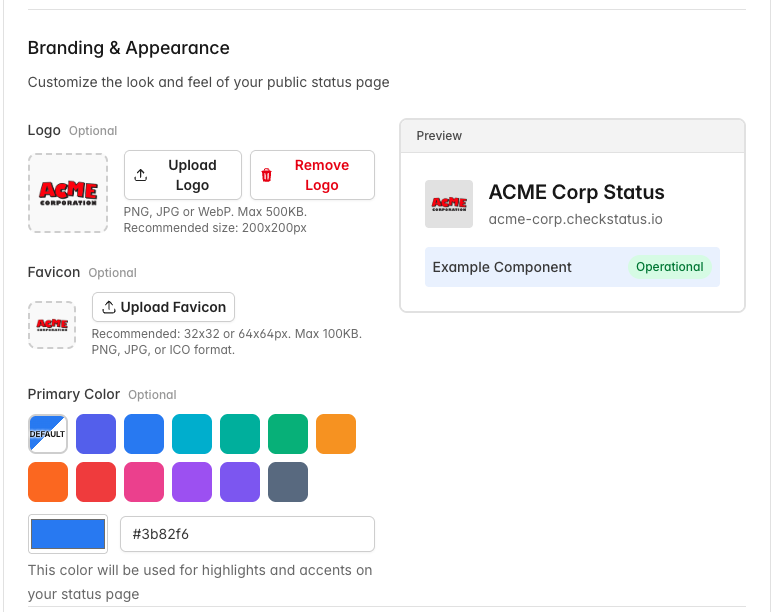
Make your status page look like an extension of your brand. CheckStatus allows you to customize your status page with your logo, colors, and company information.
Accessing Branding Settings
Branding options are part of your status page settings. To customize your branding:
- Click Status Pages in the sidebar
- Find the status page you want to customize
- Click Edit
- Scroll to the Branding & Appearance section
Alternatively, from the Dashboard, click Edit Status Page to access settings for your current status page.
Logo
Add your company logo to your status page. The logo appears in the header of your public status page.
Uploading a Logo
- In the Branding & Appearance section, find the Logo field
- Click Upload Logo
- Select an image file from your computer
- Your logo will appear in the preview on the right
- Click Save Changes
Logo Requirements
- Formats: PNG, JPG, or WebP
- Size: Maximum 500KB
- Dimensions: Recommended 200x200 pixels
Removing a Logo
To remove your logo, upload a new image or contact support. If no logo is uploaded, your status page will display your status page name as text.
Favicon
The favicon is the small icon that appears in browser tabs and bookmarks.
Uploading a Favicon
- In the Branding & Appearance section, find the Favicon field
- Click Upload Favicon
- Select an image file from your computer
- Click Save Changes
Favicon Requirements
- Formats: PNG, JPG, or ICO
- Size: Maximum 100KB
- Dimensions: Recommended 32x32 or 64x64 pixels (square)
Primary Color
Your primary color is used for:
- Buttons and interactive elements
- Links
- Accent colors throughout the page
Setting Your Primary Color
- In the Branding & Appearance section, find the Primary Color field
- Choose a color using one of these methods:
- Click a preset color button (DEFAULT, Indigo, Blue, Cyan, Teal, Emerald, Amber, Orange, Red, Pink, Purple, Violet, or Slate)
- Enter a hex code directly in the text field (e.g.,
#3B82F6) - Use the color picker to select a custom color
- Preview your changes on the right side
- Click Save Changes
Color Tips
- Use your brand's primary color for consistency
- Ensure sufficient contrast for accessibility
- Avoid colors that are too similar to status colors (red, orange, yellow, green)
Company Information
You can add your company details in the Basic Information section of the Edit Status Page:
- Company Name: Your organization name (displayed on the status page)
- Company Website: Link to your main website
Previewing Changes
The Edit Status Page includes a live Preview panel on the right side of the Branding & Appearance section. As you make changes:
- Upload your logo or favicon
- Select your primary color
- Watch the preview update in real-time
- Once satisfied, click Save Changes
Branding on Public Pages
Your branding appears on:
- Status page header: Logo and company name
- Browser tab: Favicon and page title
- Notification emails: Logo in email header
- Subscribe page: Consistent branding throughout
Dark Mode Support
CheckStatus status pages support both light and dark modes. Your branding elements should work well in both:
- Logo: Use a logo with a transparent background, or test how it looks on both light and dark backgrounds
- Primary color: Choose a color that has good contrast in both modes
- Favicon: Simple icons work best across all themes
Best Practices
Logo Design
- Keep it simple and recognizable
- Use your standard logo (not a wordmark if it's too long)
- Ensure it's legible at small sizes
- Test on both light and dark backgrounds
Color Selection
- Match your brand guidelines
- Prioritize accessibility and readability
- Consider how colors appear to colorblind users
- Test buttons and links with your chosen color
Consistency
- Use the same branding across all your status pages
- Match your main website's look and feel
- Keep branding updated when your company rebrands
Troubleshooting
Logo Not Displaying
- Check the file format (PNG, JPG, or WebP only)
- Verify the file size is under 500KB
- Try uploading a different image to test
- Clear your browser cache and refresh
Color Not Applied
- Ensure you clicked Save Changes
- Try a hard refresh (Ctrl+Shift+R or Cmd+Shift+R)
- Check that the hex code is valid
Favicon Not Showing
- Favicons can take time to update due to browser caching
- Try opening your status page in an incognito/private window
- Ensure the image is square and under 100KB
Related Topics
- Status Pages - Overview of status pages
- Account Setup - Configure your account