Features
Status Pages
Learn how to create and manage status pages for your services
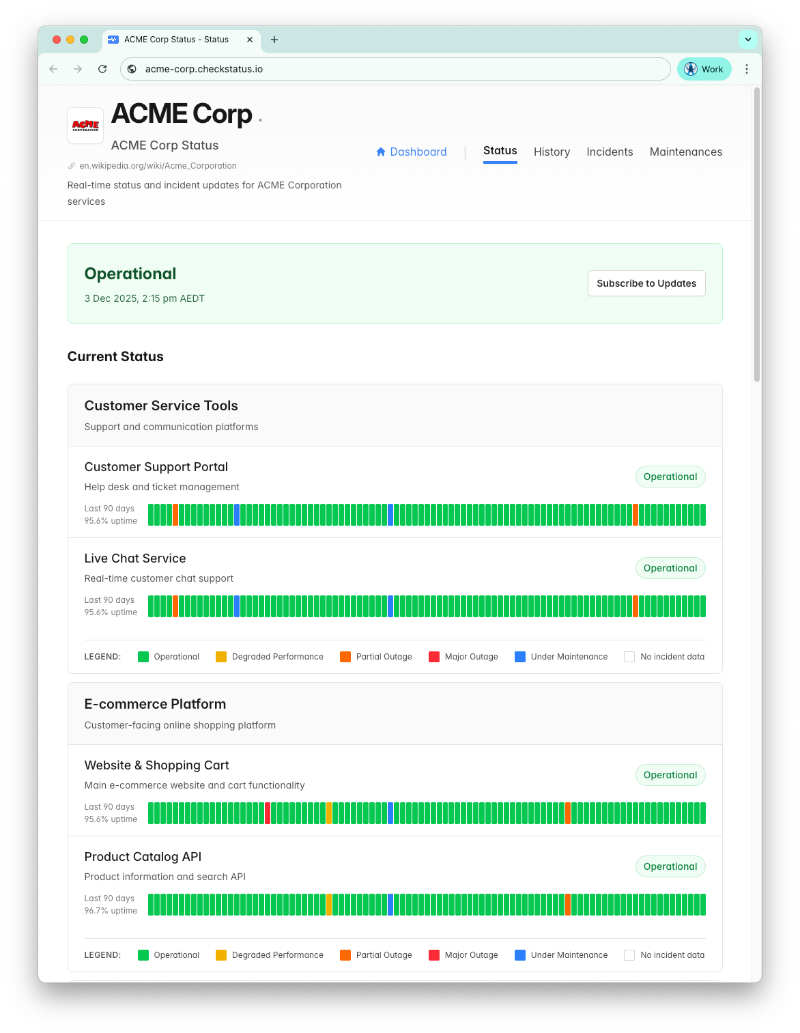
Status pages are the core of CheckStatus. They provide a public-facing page where your customers can see the current health of your services and stay informed about any incidents or maintenance.
What is a Status Page?
A status page is a dedicated web page that displays:
- The current operational status of your services
- Active incidents and their updates
- Scheduled maintenance windows
- Historical incident data
- Component uptime metrics
Your customers can visit your status page anytime to check if your service is experiencing issues, without needing to contact support.
Creating a Status Page
After signing in, you'll land on your dashboard.
New Account (No Status Pages Yet)
If you haven't created any status pages yet, you'll see a "No Status Pages Yet" banner on your dashboard:
- Click the Create Your First Status Page button on the banner
- The Create New Status Page Wizard will guide you through the setup
Existing Account (Adding Another Status Page)
If you already have status pages and want to add another:
- Click Status Pages in the sidebar
- Click Create Status Page
Complete the Wizard
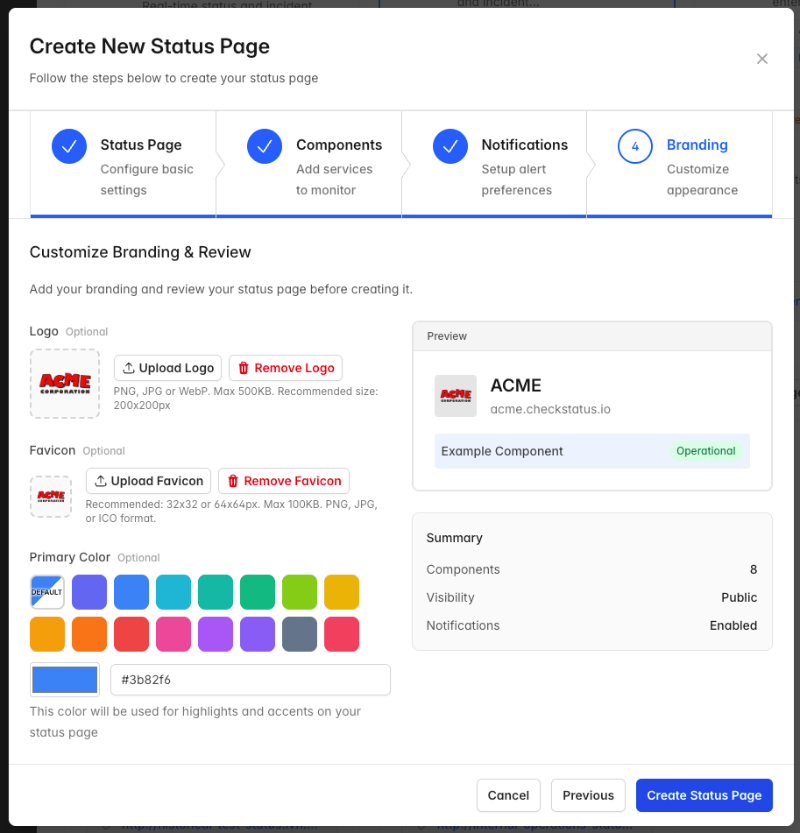
The wizard walks you through configuring your status page:
- Status Page - Set your page name, subdomain, and basic settings
- Components - Choose a Quick Start Template or add your own services to monitor
- Notifications - Configure how subscribers receive alerts
- Branding - Upload your logo, set colors, and customize appearance
Click Create Status Page when you're done.
Your status page is now live and accessible at your subdomain (e.g., yourcompany.checkstatus.io).
Status Page Settings
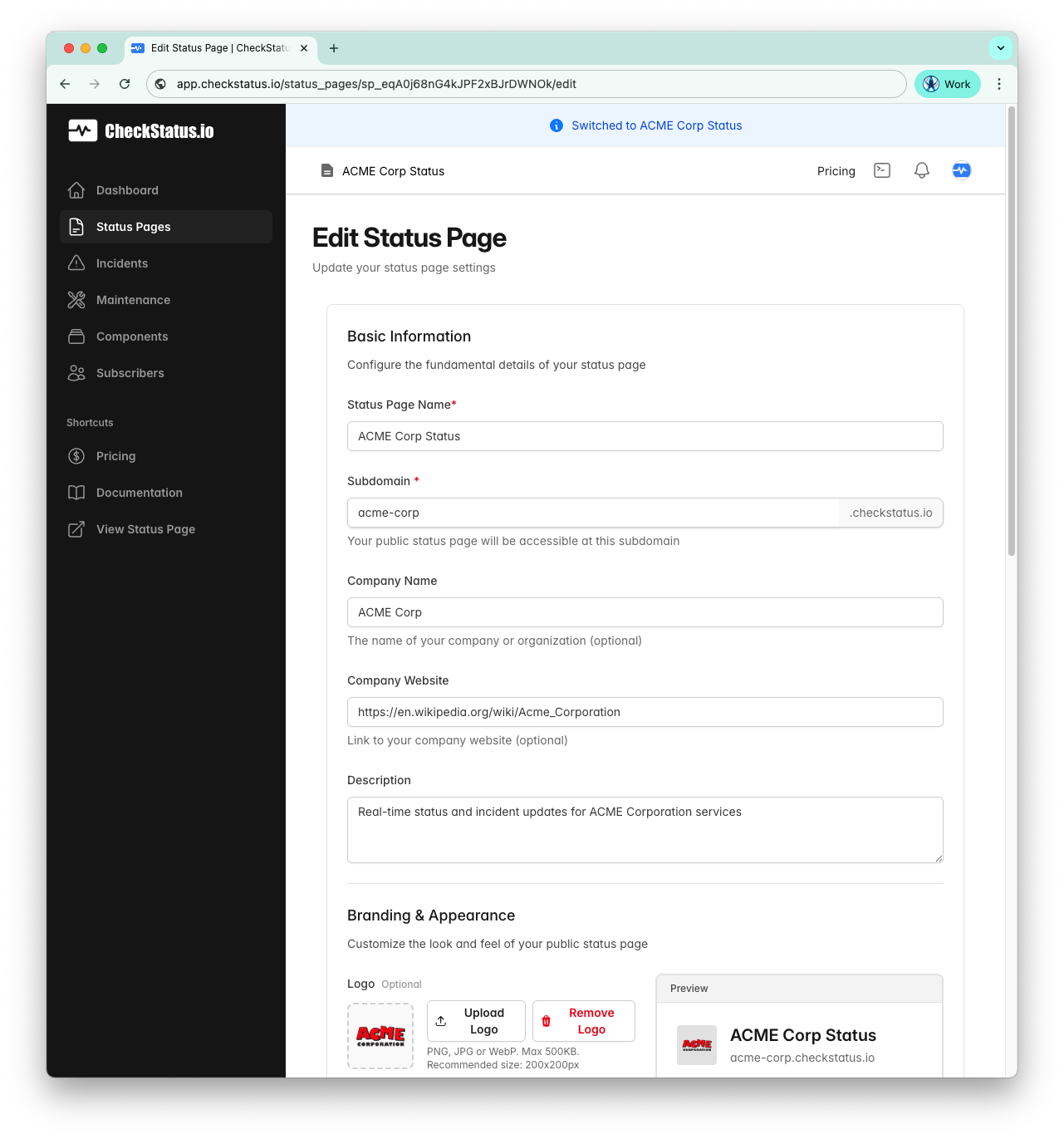
Basic Information
- Status Page Name: The title displayed on your status page
- Company Name: The Company name displayed on your status page
- Subdomain: Your unique URL (e.g.,
acme.checkstatus.io) - Company Website: The Company URL displayed on your status page
- Description: A brief description shown on your status page
Branding & Appearance
Customize the look and feel of your public status page:
- Logo: Upload your company logo (PNG, JPG, or WebP, max 500KB)
- Favicon: Upload a favicon for browser tabs (32x32 or 64x64px recommended)
- Primary Color: Choose a color for highlights and accents
Page Visibility
Control who can access your status page:
- Make this status page private: When checked, only authenticated team members can view the status page
- Enable team notifications: Team members receive email and webhook alerts when incidents are created or updated
Status Page Activation
- Active Status Page: Control whether this status page is active and visible to your users
Webhook URL
Optionally configure a webhook URL to receive incident notifications via POST requests when incidents are created or updated.
Editing a Status Page
To edit an existing status page:
- Click Status Pages in the sidebar
- Find the status page card you want to edit
- Click Edit
- Make your changes to any section
- Click Save Changes
Deleting a Status Page
To permanently delete a status page:
- Click Status Pages in the sidebar
- Click Edit on the status page card
- Scroll to the Danger Zone section at the bottom
- Click Delete Status Page
- Confirm the deletion
Warning: Deleting a status page is permanent and cannot be undone. This will delete the status page and all associated components, incidents and subscribers.
Accessing Your Public Status Page
Once created, your status page is immediately accessible at your subdomain URL. For example, if your subdomain is "acme", your status page will be available at:
https://acme.checkstatus.io
You can also access your status page by clicking the View Page button from your dashboard or the View Status Page link in the sidebar.
Status Page Limits by Plan
The number of status pages you can create depends on your plan:
| Plan | Status Pages |
|---|---|
| Free | 1 |
| Starter | 1 |
| Growth | 3 |
| Pro | 10 |
Overall Status
Your status page displays an overall status based on the health of all your components:
| Overall Status | Condition |
|---|---|
| All Systems Operational | All components are operational |
| Degraded Performance | One or more components have degraded performance |
| Partial System Outage | One or more components have a partial outage |
| Major System Outage | One or more components have a major outage |
| Under Maintenance | One or more components are under maintenance |
The overall status is automatically calculated based on the worst status among your components.
Managing Multiple Status Pages
If your plan allows multiple status pages, you can create separate pages for:
- Different products or services
- Different regions or environments
- Internal vs. external status pages
- Different customer segments
To switch between status pages, use the status page selector in the top menu.
What's Displayed on Your Status Page
Your public status page shows:
- Header: Your logo, company name, and status summary
- Components: Current status of each component with uptime metrics
- Active Incidents: Any ongoing incidents with their latest updates
- Scheduled Maintenance: Upcoming and in-progress maintenance windows
- Incident History: Past incidents from the last 3 months (or more, depending on your plan)
- Subscribe Button: Allows visitors to subscribe to email notifications
Custom Domains
Coming Soon: Custom domain support is on our roadmap. Soon you'll be able to use your own domain (e.g.,
status.yourcompany.com) instead of the default CheckStatus subdomain.
Related Topics
- Components - Add services to track on your status page
- Incidents - Report and manage incidents
- Branding - Customize your status page appearance
- Subscribers - Manage email subscribers