Features
Scheduled Maintenance
Learn how to plan and communicate maintenance windows to your customers
Scheduled maintenance allows you to plan and communicate upcoming maintenance windows to your customers in advance. This helps set expectations and reduces support inquiries during planned downtime.
What is Scheduled Maintenance?
Scheduled maintenance is a planned event that may affect your service availability. Unlike incidents (which are unexpected), maintenance is proactively communicated before it happens.
Examples of scheduled maintenance:
- Database upgrades
- Infrastructure migrations
- Security patches
- Feature deployments
- Performance optimizations
Maintenance Lifecycle
Scheduled maintenance progresses through these stages:
| Status | Description |
|---|---|
| Scheduled | Maintenance is planned for a future date |
| In Progress | Maintenance has started |
| Completed | Maintenance finished successfully |
| Cancelled | Maintenance was cancelled before completion |
Creating Scheduled Maintenance
To schedule a new maintenance window:
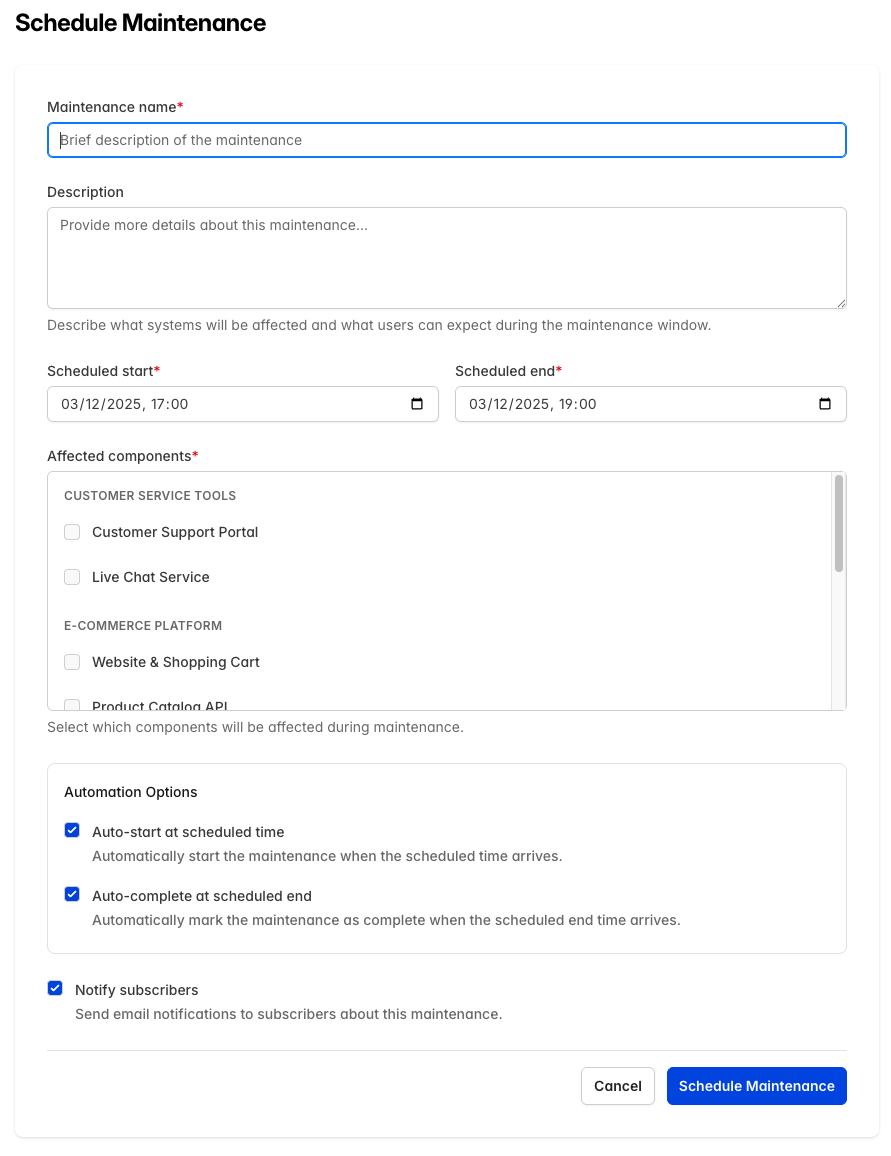
- Click Maintenance in the sidebar (or use the Schedule Maintenance quick action on the Dashboard)
- Click Schedule Maintenance
- Fill in the maintenance details:
- Maintenance name: A clear description of the maintenance
- Description: Details about what systems will be affected and what users can expect
- Scheduled start: When the maintenance will begin
- Scheduled end: When the maintenance should complete
- Select the affected components
- Configure Automation Options:
- Auto-start at scheduled time: Automatically start when the scheduled time arrives
- Auto-complete at scheduled end: Automatically mark as complete when the end time arrives
- Choose whether to Notify subscribers about the maintenance
- Configure Team Notifications (optional):
- Enable Send team reminder to notify your team before maintenance begins
- Select the reminder timing (1, 2, 4, 12, or 24 hours before)
- Click Schedule Maintenance
Affected Components
When you create maintenance, select which components will be affected. During the maintenance window:
- Selected components will show "Under Maintenance" status
- Customers can see exactly which parts of your service are impacted
- Component uptime calculations exclude maintenance periods
Automation Options
CheckStatus can automate parts of the maintenance lifecycle:
Auto-Start
When enabled, the maintenance will automatically transition to "In Progress" at the scheduled start time.
- Component statuses update automatically
- Subscribers receive a notification
- No manual intervention required
Auto-Complete
When enabled, the maintenance will automatically transition to "Completed" at the scheduled end time.
- Component statuses restore automatically
- Subscribers receive a completion notification
- Great for routine maintenance with predictable timing
Tip: Enable both options for fully automated maintenance windows that require no manual intervention.
Team Reminders
Keep your team prepared for upcoming maintenance by sending reminder emails before maintenance begins.
How Team Reminders Work
When you enable team reminders, all team members in your account will receive an email notification before the scheduled maintenance starts. This helps ensure everyone is aware and ready.
| Feature | Description |
|---|---|
| Recipients | All team members in your account |
| Timing options | 1, 2, 4, 12, or 24 hours before start |
| Default timing | 2 hours before (configurable) |
Enabling Team Reminders
When scheduling maintenance:
- In the Team Notifications section, check Send team reminder
- Select how far in advance to send the reminder (1-24 hours)
- Your selection becomes the default for future maintenances
Reminder Email Content
Team reminder emails include:
- Maintenance title and description
- Scheduled start and end times
- Expected duration
- Affected components
- Link to view the maintenance details
When Reminders Are Not Sent
The reminder will not be sent if:
- The maintenance starts sooner than the selected reminder time
- The maintenance is cancelled before the reminder time
- The maintenance is started manually before the reminder time
- A team member has opted out of maintenance reminders in their profile
Note: If the selected reminder time is longer than the time until maintenance starts, a warning message will appear on the form. The reminder simply won't be sent in this case.
Opting Out of Team Reminders
Individual team members can opt out of receiving maintenance reminder emails:
- Click your avatar in the top right and select Edit profile
- In the Notification Preferences section, uncheck Receive maintenance reminders
- Click Update
This only affects pre-maintenance reminder emails. Other team notifications (incident alerts, etc.) are not affected.
Managing Maintenance
Starting Maintenance Early
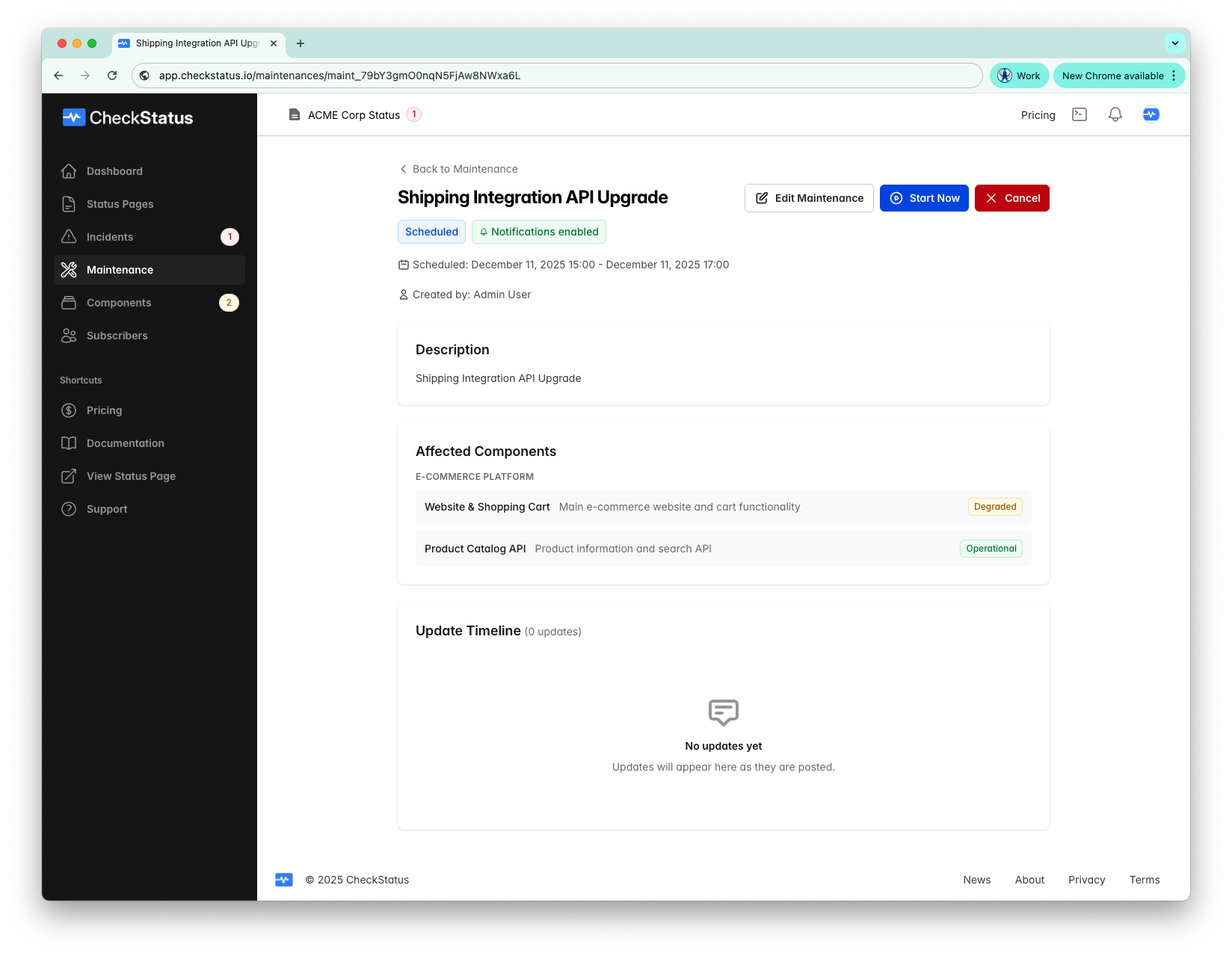
If you need to start maintenance before the scheduled time:
- Open the scheduled maintenance
- Click Start Now
- Component statuses will update immediately
Extending Maintenance
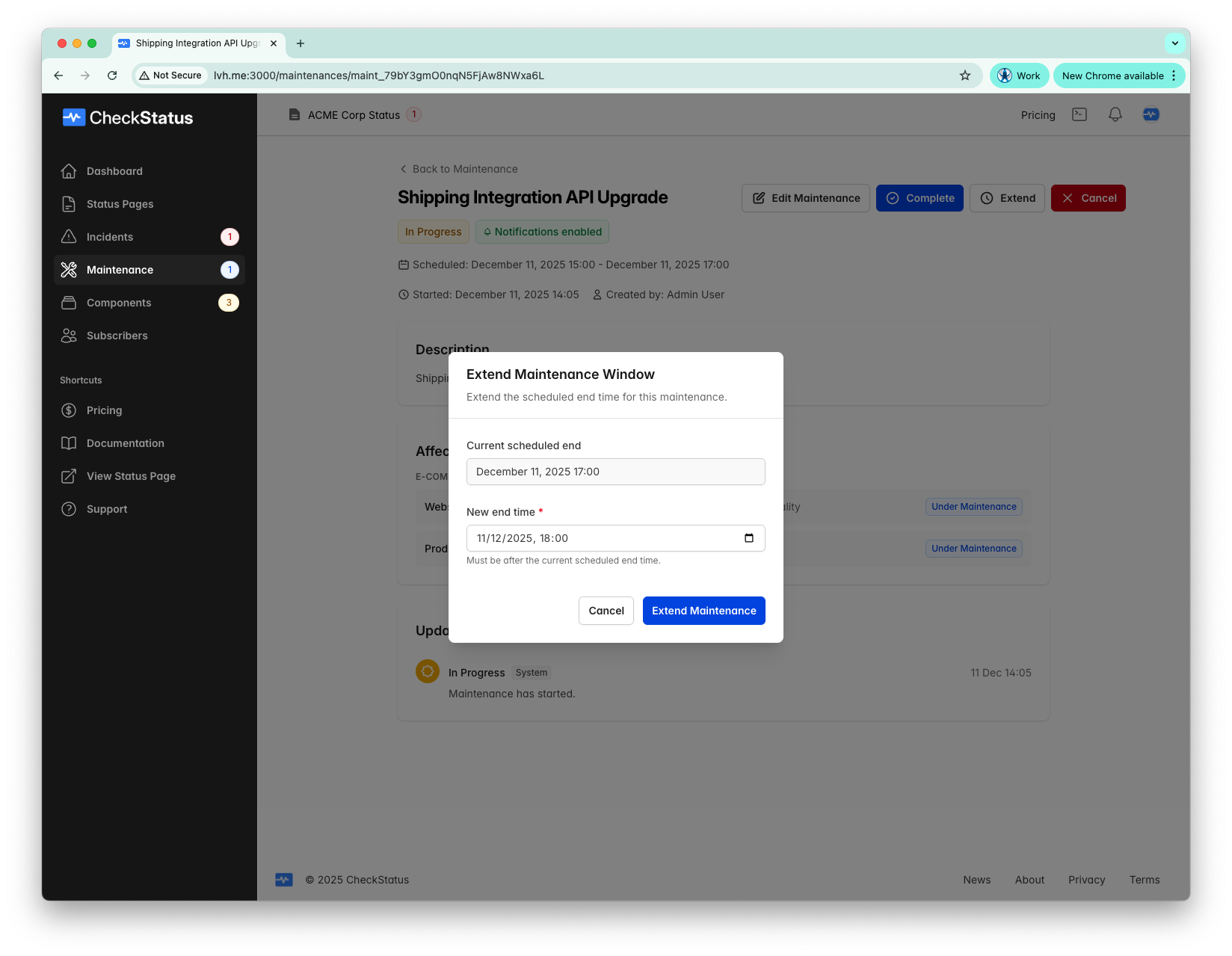
If maintenance takes longer than expected:
- Open the in-progress maintenance
- Click Extend
- Set a new end time
- Click Extend Maintenance
Completing Maintenance
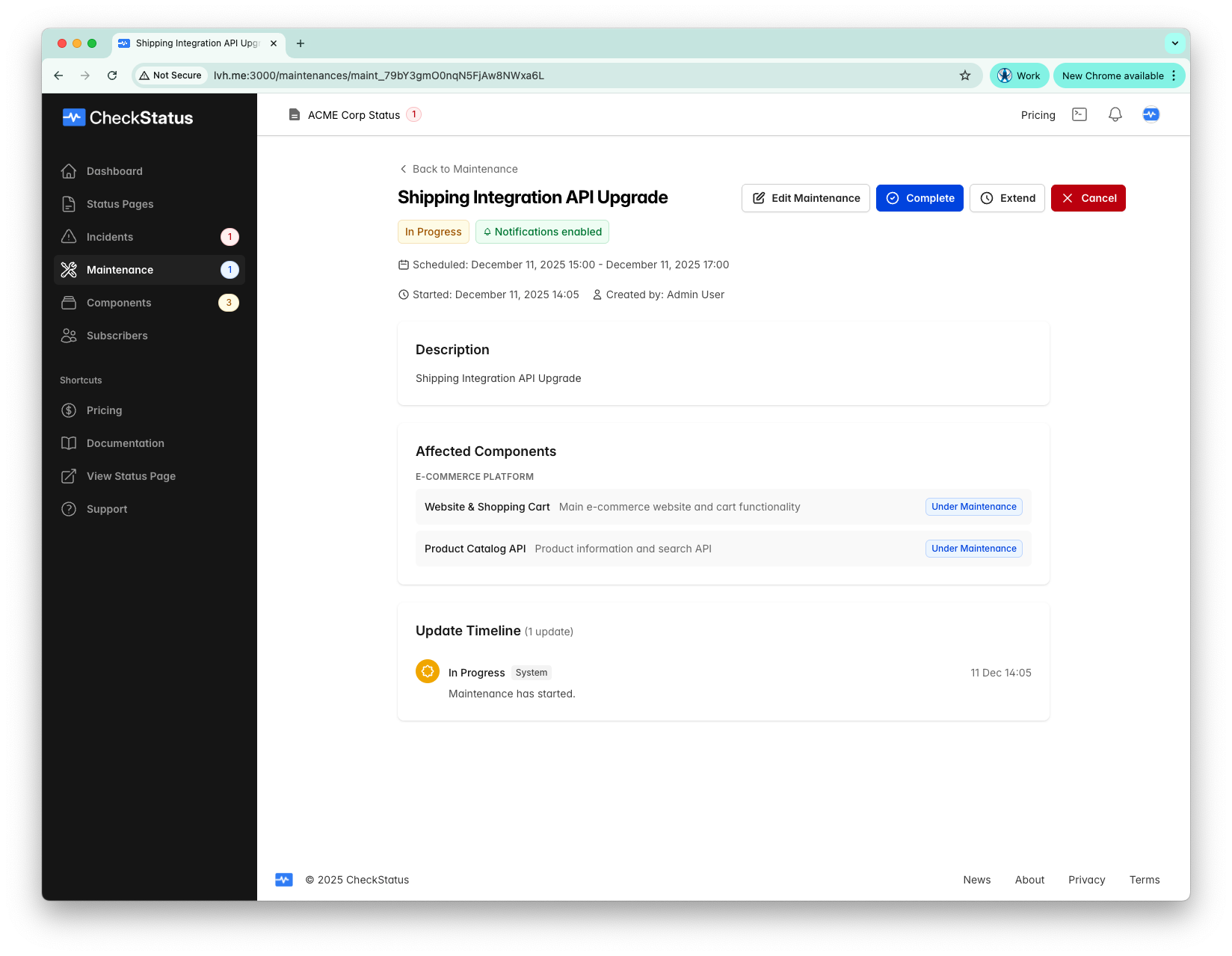
To manually mark maintenance as complete:
- Open the in-progress maintenance
- Click Complete
- Component statuses will be restored
Cancelling Maintenance
To cancel a scheduled maintenance:
- Open the scheduled or in-progress maintenance
- Click Cancel
- If in progress, component statuses will be restored
Editing Maintenance Details
To edit maintenance details (title, description, schedule, components, or automation options):
- Open the maintenance and click Edit Maintenance
- Click the Edit Details button in the header
- Update the desired fields in the slideover panel
- Click Save Changes
Note: Once maintenance is in progress, you cannot change the scheduled start time. The scheduled end time can still be modified.
Deleting Maintenance
To permanently delete a maintenance record:
- Open the maintenance and click Edit Maintenance
- Scroll to the Danger Zone section at the bottom of the page
- Click Delete Maintenance
- Confirm the deletion
Warning: Deleting maintenance is permanent and cannot be undone. This removes the maintenance record and all associated updates from your history.
Adding Maintenance Updates
Keep customers informed during maintenance by posting progress updates:
- Click Maintenance in the sidebar
- Click on a maintenance to view it, then click Edit Maintenance
- In the Post Update section:
- Enter your Message describing the current progress
- Check or uncheck Notify subscribers as needed
- Click Post Update
The Notify subscribers checkbox on the update form:
- Defaults to checked for all updates
- Each update is a deliberate action, so subscribers are generally notified
- Can be unchecked per-update if you want to post silently
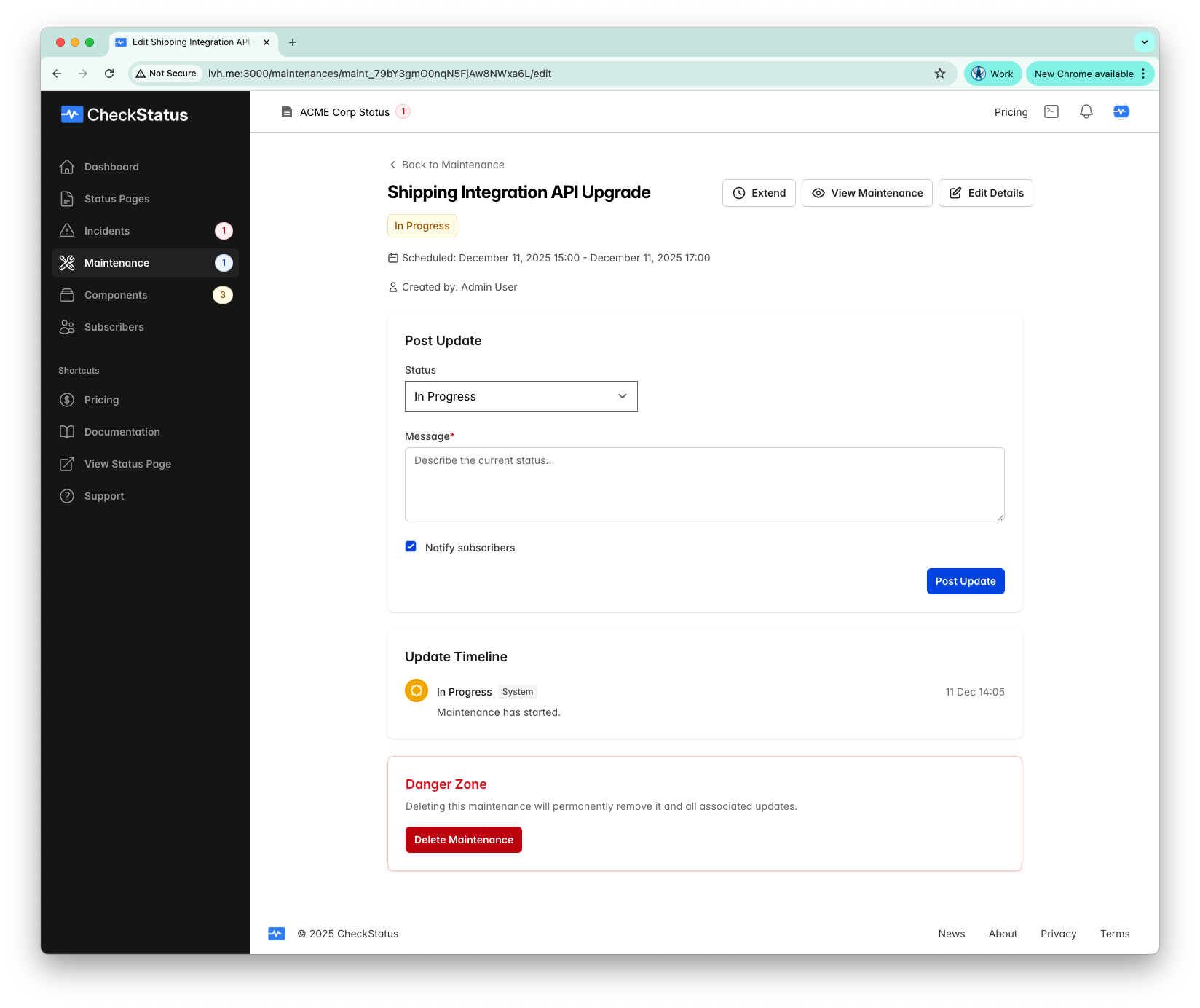
Update Timeline
The Update Timeline shows a chronological history of all progress updates and system events:
| Update Type | Description |
|---|---|
| Update | Progress notes you post during maintenance |
| System | Automatic entries when maintenance starts, completes, is cancelled, or extended |
System events are created automatically when you use the action buttons (Start, Complete, Cancel, Extend) and cannot be edited or deleted.
Update Best Practices
Post regular progress updates to keep customers informed:
We're beginning scheduled maintenance on our database servers. Expected duration: 2 hours.
Maintenance is proceeding as planned. We're 50% complete.
Database migration complete. Running final verification checks.
Tip: Use the Complete button to mark maintenance as finished—this automatically notifies subscribers and restores component statuses.
Viewing Maintenance
CheckStatus provides several views for managing maintenance:
Upcoming
Shows all scheduled maintenance that hasn't started yet. This is your planning view.
In Progress
Shows maintenance currently underway. The sidebar badge (and tab badge) indicate how many are active.
Past
Shows completed and cancelled maintenance with filtering options:
- Search: Find maintenance by title
- Components: Filter by affected components
- Date range: Filter by completion date
Subscriber Notifications
Subscribers can receive notifications for maintenance events:
| Event | Notification |
|---|---|
| Maintenance scheduled | 24 hours before (if enabled) |
| Maintenance started | When maintenance begins |
| Maintenance updated | When you post an update |
| Maintenance completed | When maintenance finishes |
| Maintenance cancelled | If you cancel maintenance |
Learn more about notifications →
Best Practices
Planning Maintenance
- Schedule during low-traffic periods when possible
- Give customers adequate notice (at least 24-48 hours)
- Be realistic about duration estimates
- Have a rollback plan
Communication
- Clearly explain what will be affected
- Provide expected impact and duration
- Post updates during maintenance
- Notify when complete, even if nothing went wrong
Timing
- Consider your customers' time zones
- Avoid scheduling during business-critical hours
- Group related maintenance to minimize disruptions
After Maintenance
- Verify all systems are operational
- Monitor for any issues
- Thank customers for their patience
Maintenance on Your Status Page
On your public status page, maintenance appears in several places:
- Banner: Active maintenance shows a prominent banner
- Component Status: Affected components show "Under Maintenance"
- Scheduled Section: Upcoming maintenance is listed in a dedicated section
- History: Past maintenance appears in the history section
Related Topics
- Components - Manage components affected by maintenance
- Incidents - Report unexpected issues
- Subscribers - Manage notification recipients
- Notifications - Configure notification settings