Features
Subscribers
Learn how to manage subscribers who receive status updates
Subscribers are customers who sign up to receive email notifications about your service status. When incidents occur or maintenance is scheduled, subscribers are automatically notified.
How Subscriptions Work
- Visitors subscribe: Anyone can subscribe to your status page using the subscribe form
- Confirmation email: Subscribers receive an email to confirm their subscription
- Notifications: Confirmed subscribers receive email notifications for incidents and maintenance
- Unsubscribe: Subscribers can unsubscribe at any time using the link in any notification email
Public Subscription Form
Your public status page includes a subscription form where visitors can sign up for updates:
- Visitor enters their email address
- They click Subscribe
- CheckStatus sends a confirmation email
- They click the confirmation link
- They're now subscribed and will receive notifications
Note: Team members cannot subscribe to their own status pages via the public form.
Managing Subscribers
To view and manage your subscribers:
- Click Subscribers in the sidebar
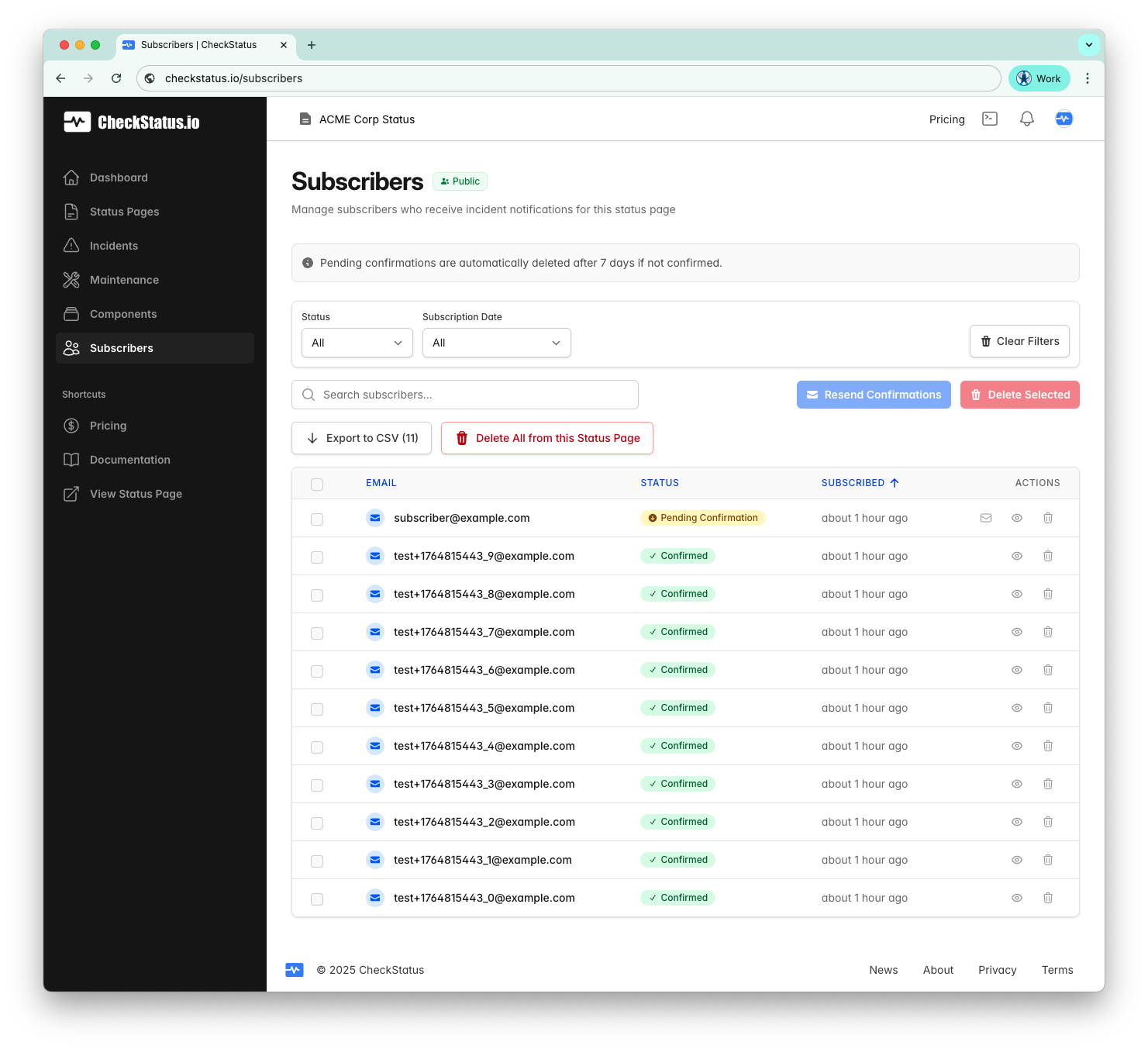
- View the list of all subscribers
Note: Pending confirmations are automatically deleted after 7 days if not confirmed.
Subscriber Information
The subscriber list shows:
- Email: The subscriber's email address
- Status: Confirmed or Pending Confirmation
- Subscribed: When they signed up (click to sort)
- Actions: View details, resend confirmation (for pending), or delete
Viewing Subscriber Details
To view detailed information about a subscriber:
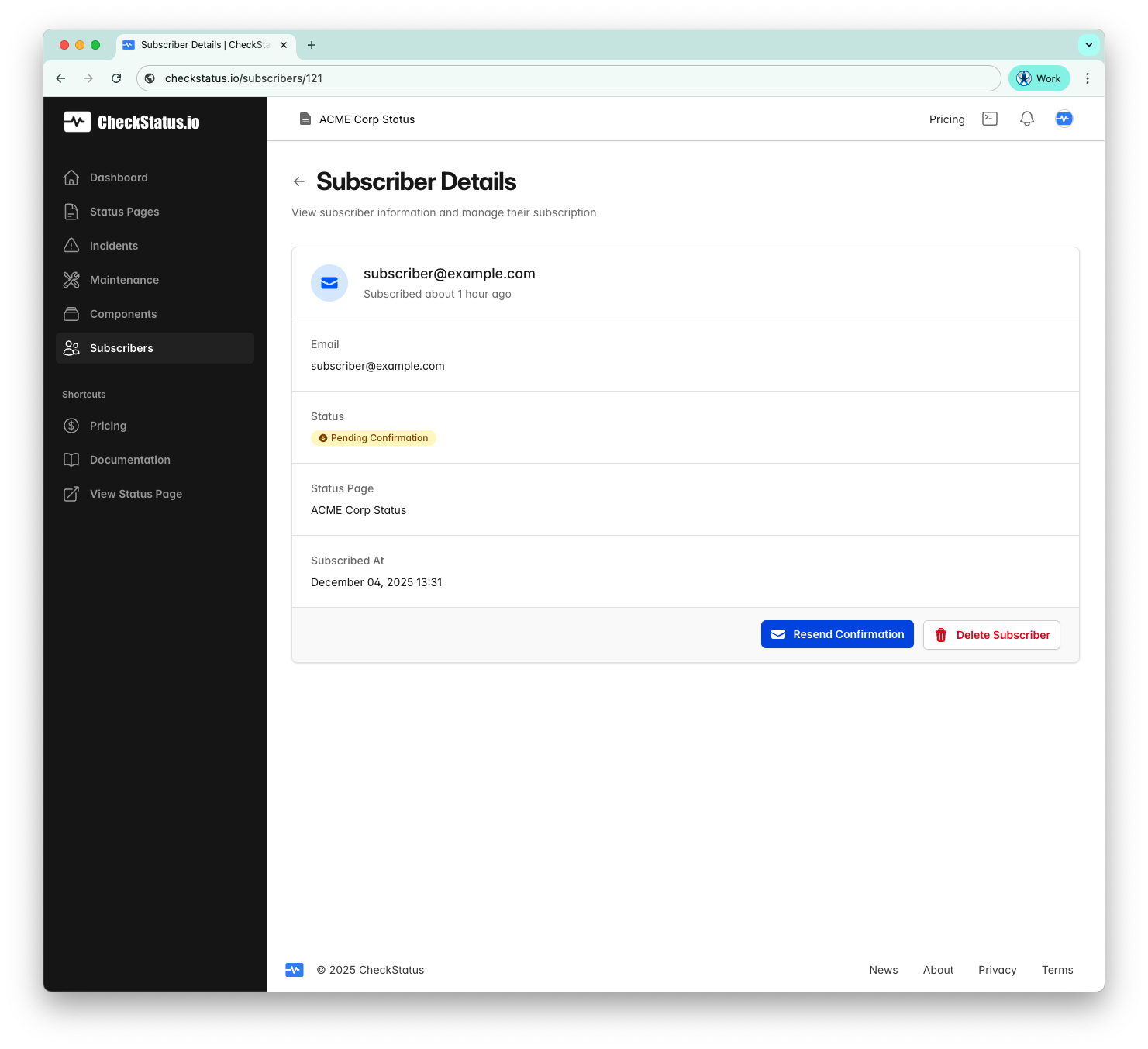
- Click the view icon (eye) on the subscriber row
- View the subscriber's email, status, status page, and subscription date
- From this page you can also resend confirmation or delete the subscriber
Filtering Subscribers
Use the filters to find specific subscribers:
- Status: Filter by All, Confirmed, or Pending Confirmation
- Subscription Date: Filter by date range (e.g., Last 7 Days, Last 30 Days)
- Search: Find subscribers by email address
- Clear Filters: Reset all filters to default
Resending Confirmations
For subscribers with Pending Confirmation status, you can resend the confirmation email:
Resend for Individual Subscriber
- Click the envelope icon on the subscriber row, or
- Click the view icon to open Subscriber Details, then click Resend Confirmation
Bulk Resend Confirmations
- Select subscribers using the checkboxes
- Click Resend Confirmations
This sends a new confirmation email to all selected pending subscribers.
Exporting Subscribers
You can export your subscriber list as a CSV file:
- Click Subscribers in the sidebar
- Apply any filters you want (exports respect current filters)
- Click Export to CSV
The button shows the count of subscribers that will be exported (e.g., "Export to CSV (11)").
Deleting Subscribers
Deleting Individual Subscribers
- Click the trash icon on the subscriber row, or
- Click the view icon to open Subscriber Details, then click Delete Subscriber
Bulk Delete Selected
To delete multiple subscribers at once:
- Select subscribers using the checkboxes
- Click Delete Selected
- Confirm the deletion
Delete Filtered Results
When you have filters applied, you can delete all matching subscribers:
- Apply filters (e.g., Status or Subscription Date)
- Click Delete Filtered (shows count of matching subscribers)
- Confirm the deletion
Delete All from Status Page
To remove all subscribers from a status page:
- Click Delete All from this Status Page
- Confirm the deletion
Warning: Deleting subscribers is permanent and cannot be undone.
Subscriber Notifications
Subscribers receive email notifications for:
| Event | When Sent |
|---|---|
| Incident created | When a new incident is published |
| Incident updated | When an incident update is posted |
| Incident resolved | When an incident is marked resolved |
| Maintenance scheduled | When new maintenance is created (if notifications enabled) |
| Maintenance reminder | 24 hours before maintenance (if enabled) |
| Maintenance started | When maintenance begins |
| Maintenance completed | When maintenance is finished |
Note: Only confirmed subscribers receive notifications. Pending subscribers (who haven't clicked the confirmation link) don't receive any notifications.
Subscriber Limits by Plan
Your plan determines how many subscribers you can have across all status pages:
| Plan | Subscriber Limit |
|---|---|
| Free | 50 |
| Starter | 500 |
| Growth | 1000 |
| Pro | 5000 |
What Happens at the Limit
- Soft limit (80%): You'll see a warning banner indicating you're approaching the limit
- Hard limit (100%): New subscriptions will be blocked until you upgrade or remove existing subscribers
The subscriber limit applies to your entire account, not per status page.
Unsubscribing
Subscribers can unsubscribe using the unsubscribe link included in every notification email. When someone unsubscribes, they're immediately removed from your subscriber list and won't receive any more notifications.
Best Practices
Growing Your Subscriber Base
- Add a prominent link to your status page from your main website
- Include your status page URL in your app's footer or settings
- Mention your status page in your documentation
- Encourage customers to subscribe during onboarding
Managing Subscribers
- Regularly review your subscriber list for invalid emails
- Export and backup your subscriber list periodically
- Remove bounced or invalid email addresses
Notification Quality
- Keep incident updates concise and informative
- Don't over-notify (combine related updates when possible)
- Always send a resolution notification when incidents are resolved
Related Topics
- Incidents - Create incidents that notify subscribers
- Scheduled Maintenance - Plan maintenance windows
- Notifications - Configure notification settings